


How to Activate and Use Lane Centering in the 2026 Ford Expedition and Explorer
Getting the most out of a modern Ford SUV means actually understanding the technology packed into it. Lane Centering Assist tends to generate more questions from new owners than almost any other feature, especially as Ford keeps refining its driver assistance suite across vehicles like the 2026 Expedition and Explorer.
Whether you’re figuring out how to turn it on for the first time or wondering why it isn’t responding the way you expect, this guide covers everything clearly and practically. Browse our new Ford inventory if you’re still deciding which model fits your needs.
What Is Lane Centering Assist and How It Fits Into Co-Pilot360
Ford’s Co-Pilot360 is the umbrella system that groups multiple driver assistance technologies together, and Lane Centering Assist is one of its most useful pieces for highway driving. It goes further than basic lane-keeping by actively steering the vehicle to keep it positioned in the middle of the lane, rather than waiting for a drift to trigger a correction.
On both the 2026 Expedition and Explorer, the system uses a front-facing camera behind the rearview mirror, along with radar sensors, to continuously read lane markings and make subtle steering adjustments in real time. Before diving into activation, it’s worth understanding how the three related features actually differ from each other.
| Feature | Feature Type | Activation Method | Requires ACC | Steering Input Applied | Driver Alert Type | Standard on 2026 Trims |
| Lane-Keeping Alert | Warning only | Automatic when enabled | No | None | Visual and audible | Yes |
| Lane-Keeping Aid | Reactive correction | Automatic when enabled | No | Corrective torque on drift | Visual and audible | Yes |
| Lane Centering Assist | Proactive centering | Requires ACC engagement | Yes | Continuous centering inputs | Attention monitoring warnings | Yes |
Lane-Keeping Alert and Lane-Keeping Aid are part of the base Co-Pilot360 package on both vehicles. Lane Centering Assist requires Co-Pilot360 Assist+ or Co-Pilot360 Assist 2.0, depending on trim. Availability should be confirmed at the time of purchase.
How to Activate Lane Centering Assist on the 2026 Expedition and Explorer
Activating Lane Centering Assist is a two-part process. First, you enable it through the SYNC touchscreen. Then you switch it on each drive using the steering wheel controls.
Enabling the Feature Through SYNC
On the SYNC touchscreen, navigate to Settings → Driver Assist → Lane Keeping System → Mode and confirm Lane Centering Assist is selected. Once you’ve done that, the feature becomes available, but it won’t activate automatically every time you start driving. You’ll need to press the lane centering button on the steering wheel (it shows a steering wheel icon flanked by lane lines) to turn it on for that drive.
One thing worth knowing: the camera needs to detect both visible lane markings before the system will engage. Faded or missing lane lines are one of the more common reasons drivers find the feature unresponsive, and it’s an easy thing to overlook.
Pairing with Adaptive Cruise Control with Stop-and-Go
Lane Centering Assist only works when Adaptive Cruise Control with Stop-and-Go (ACC) is running. Set your desired speed and following distance through ACC as you normally would, then activate Lane Centering Assist via the steering wheel button. With both systems running, the vehicle maintains your set speed, responds to traffic ahead, and keeps itself centered in the lane all at once.
The system operates above 40 mph (64 km/h). Drop below that threshold and it deactivates automatically. On longer highway stretches around Montgomery, that combination of ACC and lane centering makes a real difference for fatigue over extended drives.
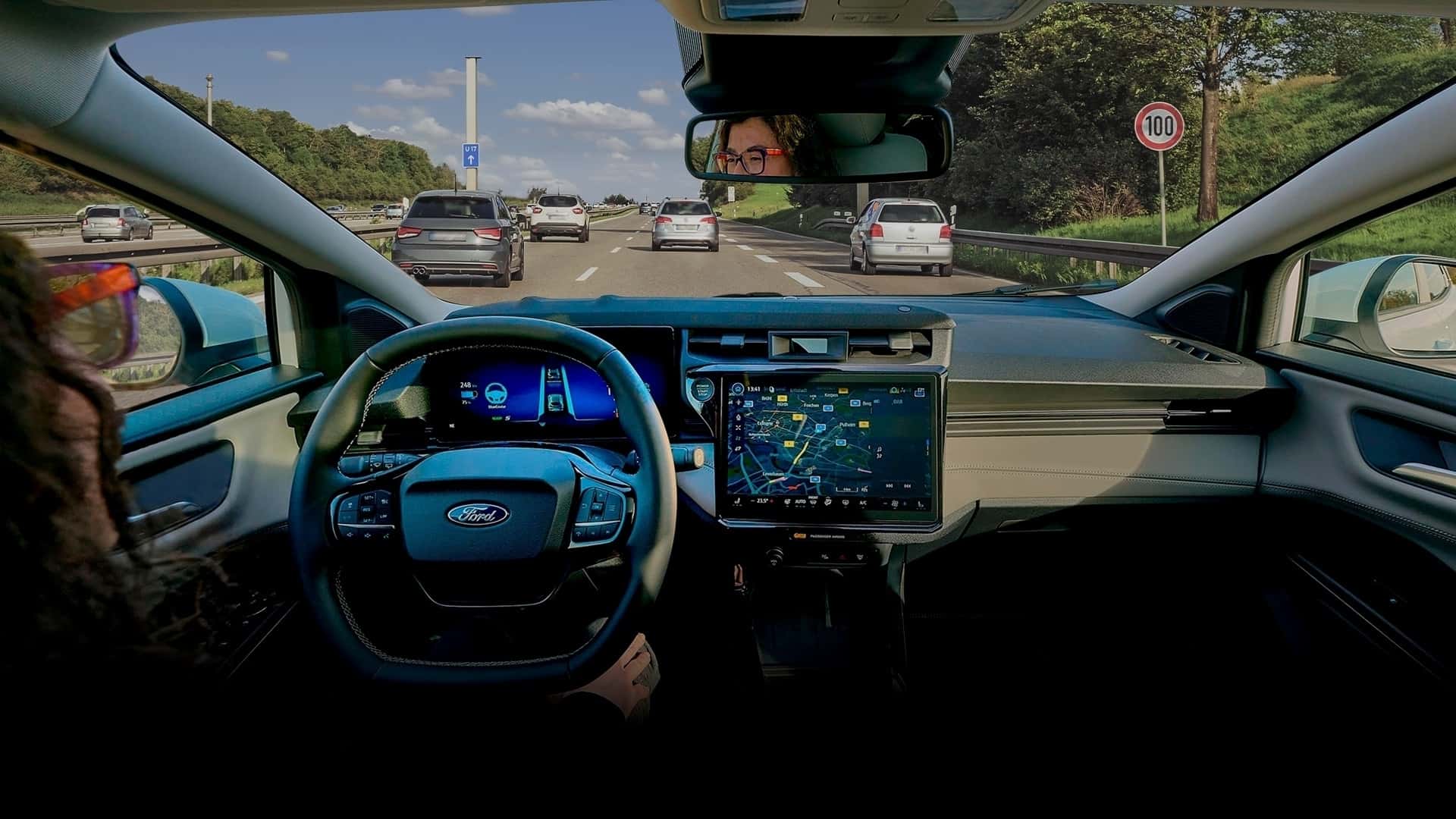
What to Expect When Lane Centering Assist Is Active
Once engaged, the instrument cluster shows a green icon confirming the system is active and applying steering assistance. A gray icon means it’s on but temporarily inactive, usually because lane markings aren’t detectable at that moment.
The steering feels slightly assisted, with gentle inputs guiding the wheel without fighting your grip. Any deliberate steering you do takes priority immediately. On gradual curves, the system follows the arc smoothly; on straight roads, the steering may feel lighter than usual as the system shares the load.
A practical tip: keep a relaxed, light grip rather than a firm hold. Gripping tightly creates resistance against the system’s corrections, which makes the steering feel choppy and inconsistent. The system is built for a cooperative relationship between driver and vehicle, not a tug-of-war.
Your hands still need to stay on the wheel. Ford’s system checks for slight movements of the steering wheel to verify hands are on the wheel, and if no steering activity is detected for a set period, it issues a warning. Ignore that warning and the system cancels Lane Centering Assist, slows the vehicle to idle, and retains steering control until you take over.
BlueCruise: Ford’s Hands-Free Upgrade
For drivers who want to go further, Ford offers BlueCruise as a subscription-based upgrade on eligible vehicles. On pre-mapped divided highway segments called Blue Zones, BlueCruise allows hands-free operation while the system manages both speed and lane position simultaneously.
Where standard Lane Centering Assist requires hands on the wheel, BlueCruise uses an interior driver-facing camera to monitor eye attention instead. Look away for too long and the system escalates its alerts. On many 2026 model year vehicles, a one-year BlueCruise plan is included standard at no additional cost, depending on trim.
Where it is not included standard, new qualifying purchases receive a 90-day complimentary trial, starting from the vehicle’s warranty start date. Confirm which applies to your specific configuration at the time of purchase. If you’re weighing that cost alongside your purchase, we can walk you through our financing options to find something that works.
BlueCruise availability on 2026 models should be confirmed at the time of purchase, since eligible configurations vary. Don’t assume it’s active on your vehicle without checking through the FordPass app or your SYNC screen first.
When Lane Centering Assist Deactivates and How to Troubleshoot
Lane Centering Assist deactivates under specific conditions, and knowing what triggers a shutdown saves real frustration on the road. The most common cause is the camera losing sight of lane markings due to heavy rain, fog, direct glare, or worn road markings. Speed dropping below 40 mph (64 km/h) will cause automatic deactivation, as will a blocked or dirty camera lens.
If the feature seems unresponsive, start here:
- Clean the windshield directly in front of the rearview mirror where the camera sits. Dirt, ice, or streaks can obstruct the lens more than you’d expect.
- Confirm Lane Centering Assist is still enabled in Settings → Driver Assist → Lane Keeping System → Mode. Software updates or a battery disconnect can quietly reset preferences.
- If both Lane-Keeping Alert and Lane Centering Assist seem unresponsive at the same time, that may point to a camera calibration issue worth having a technician look at.
To deactivate Lane Centering Assist on demand, press the lane centering button on the steering wheel once. You can also disable it through the SYNC settings menu for routes or conditions where you’d rather have full manual control.
Driver Responsibility and Next Steps at Stivers Ford of Montgomery
Staying Attentive Behind the Wheel
Even with Lane Centering Assist active, Ford’s design keeps the driver responsible. The feature reduces workload on Montgomery-area highway commutes and longer interstate runs, but it doesn’t replace attentiveness. If the attention monitoring system detects a prolonged lack of steering input, it will warn you and, if unacknowledged, cancel the feature and reduce vehicle speed while retaining steering control.
Explore the 2026 Expedition and Explorer With Us
If you’d like to experience Ford’s Co-Pilot360 technology firsthand, we’re glad to help. Feel free to contact us with any questions about Lane Centering Assist, BlueCruise activation, or trim options before your visit. Our team can walk you through setup and help you find the right configuration for the way you actually drive.
Images by OEM
0 comment(s) so far on How to Activate and Use Lane Centering in the 2026 Ford Expedition and Explorer